
In my previous post, Run gpt-oss Locally on Ryzen AI , I shared my initial experiments testing OpenAI’s gpt-oss models on the newly acquired GMKtec EVO-X2, powered by the AMD Ryzen AI Max+ 395 with 128 GB of memory.
While Ollama on Windows handled smaller models reasonably well, running the much larger gpt-oss 120B model was not fast enough for my day-to-day use. The default CLI also did not expose the level of tokens-per-second metrics I wanted for proper benchmarking.
Interestingly, AMD’s official material has demonstrated large models such as GPT-OSS 120B on AMD Ryzen and Radeon hardware using a Windows-based software stack. At the same time, I found that practical, reproducible benchmarks for native Linux ROCm inference on the gfx1151 Radeon 8060S were less readily available.
That led me to try a different approach.
The AMD Strix Halo platform is particularly interesting for local AI because the integrated Radeon 8060S uses a unified memory architecture. Unlike a conventional discrete GPU with a fixed amount of dedicated VRAM, the GPU can access a large portion of the system’s LPDDR5X memory through the Linux graphics and memory-management stack.
On my 128 GB machine, this makes it possible to experiment with models that would normally require substantially more dedicated GPU memory. The goal of this experiment was simple:
Run llama.cpp locally on the Radeon 8060S using ROCm, configure the Linux memory subsystem appropriately, and measure actual inference performance across increasingly large models.
This post documents the setup, the memory configuration, the ROCm and llama.cpp build process, the problems encountered along the way, and the resulting benchmarks from 7B through 120B models.
High-Level Architecture
Getting GPU acceleration working on Strix Halo involves several layers:
The important point is that the model does not communicate directly with the hardware. The path is approximately:
Linux → amdgpu → /dev/kfd → ROCm/HIP → llama.cpp → GGUF model
The remainder of the post walks through each layer.
1. OS Installation: Moving to Ubuntu 26.04 LTS
The GMKtec EVO-X2 ships with Windows 11 Pro on its primary drive. Windows worked well for my initial experiments, but native Linux provides much more direct access to the kernel memory subsystem, device nodes, sysfs parameters, and ROCm tooling.
To keep the environments separate, I installed Ubuntu onto a dedicated M.2 NVMe SSD.
- Download the standard 64-bit desktop ISO from Ubuntu Desktop .
- Use Rufus on Windows to flash the ISO to a USB drive.
- Boot the EVO-X2 from the USB drive and install Ubuntu 26.04 LTS onto the separate NVMe SSD.
This gives me a clean Linux environment without modifying the original Windows installation.
2. Hardware Detection
The test machine is based on AMD Strix Halo with the Radeon 8060S Graphics controller.
First, verify that Linux detects the GPU:
lspci -nn | grep -Ei 'vga|display|amd'Output:
c6:00.0 Display controller [0380]: Advanced Micro Devices, Inc. [AMD/ATI] Strix Halo [Radeon Graphics / Radeon 8050S Graphics / Radeon 8060S Graphics] [1002:1586] (rev c1)The important detail is the GPU architecture, gfx1151. This target becomes important later when compiling llama.cpp.
3. BIOS Configuration: The Framebuffer Misconception
One of the biggest differences between my Windows and Linux configurations is how memory is exposed to the integrated GPU.
During my previous Windows experiments, I configured the BIOS to allocate 96 GB out of the 128 GB system memory to the integrated graphics:
# Previous Windows Configuration:
Integrated Graphics
    └── UMA Frame Buffer Size
└── 96 GB (static hardware partition)This makes the memory appear more like dedicated graphics memory to the Windows software stack. On Linux, I found that I did not need to reserve such a large static framebuffer. Instead, I configured:
# Linux Configuration:
Integrated Graphics
    └── UMA Frame Buffer Size
└── 512 MB (display framebuffer only)4. Verifying Linux GPU Driver & Device Nodes
After booting Ubuntu, confirm that the AMD GPU driver is loaded:
lsmod | grep amdgpuExample output:
amdgpu              21569536  48
amdxcp                 12288  1 amdgpu
drm_panel_backlight_quirks    12288  1 amdgpu
drm_buddy              28672  1 amdgpu
drm_ttm_helper         20480  1 amdgpu
ttm                   135168  2 amdgpu,drm_ttm_helper
drm_exec               12288  1 amdgpu
drm_suballoc_helper    24576  1 amdgpu
drm_display_helper    303104  1 amdgpu
gpu_sched              69632  2 amdxdna,amdgpu
cec                   106496  2 drm_display_helper,amdgpu
i2c_algo_bit           16384  1 amdgpu
video 77824 1 amdgpuThen check the kernel messages:
sudo dmesg | grep -i amdgpu | tail -10Example:
[drm] Initialized amdgpu 3.64.0 for 0000:c6:00.0 on minor 1
fbcon: amdgpudrmfb (fb0) is primary deviceCompute & Render Devices
ROCm accesses AMD GPUs through the AMD Kernel Fusion Driver and the DRM render interface. Check:
ls -l /dev/kfd /dev/dri/renderD128Example:
crw-rw-rw-+ 1 root render 511,   0 Aug 15 14:56 /dev/kfd
crw-rw-rw-+ 1 root render 226, 128 Aug 15 14:56 /dev/dri/renderD128To access these devices without running the inference process as root, add your user to the render group:
sudo usermod -aG render $USER
groupsA new login session may be required before the group membership takes effect.
5. Validating Compute Capability with rocminfo
Next, verify that ROCm can see the compute device:
sudo apt install rocminfo
rocminfo | grep -A40 "Agent 2"On this machine, the important part of the output is:
*******
Agent 2
*******
  Name:                    gfx1151
  Uuid:                    GPU-XX
  Marketing Name:          Radeon 8060S Graphics
  Vendor Name:             AMD
  Feature:                 KERNEL_DISPATCH
  Profile:                 BASE_PROFILE
  Float Round Mode:        NEAR
  Max Queue Number:        128(0x80)
  ...
  Chip ID:                 5510(0x1586)
  Max Clock Freq. (MHz):   2900
  Compute Unit:            40
  Memory Properties:       APU
Fast F16 Operation: TRUEAnd the ISA details:
ISA Info:
    ISA 1
      Name:                    amdgcn-amd-amdhsa--gfx1151
      Machine Models:          HSA_MACHINE_MODEL_LARGE
      Profiles:                HSA_PROFILE_BASE
      Fast f16:                TRUE
Workgroup Max Size: 1024(0x400)This confirms that ROCm is seeing the Radeon 8060S as a gfx1151 compute device with 40 compute units.
6. Demystifying the Memory: VRAM vs GTT vs TTM
Understanding the memory model is probably the most important part of getting large models running on Strix Halo. There are three different concepts to keep separate:
6.1. The Three Layers of APU Memory
| Concept | What It Is | Size on My 128 GB Machine | Role in Local AI |
|---|---|---|---|
| VRAM | Dedicated Framebuffer allocation | 512 MiB |
Primarily used for display/framebuffer purposes |
| GTT | GPU-accessible address space | ~115 GiB |
Allows the GPU to access system memory |
| TTM | Linux graphics memory-management layer | ~115 GiB configured |
Manages memory used by GPU workloads |
Inspect the memory information through sysfs:
# Display framebuffer
cat /sys/class/drm/card1/device/mem_info_vram_total
# Output: 536870912 (512 MiB)

# GPU-accessible GTT space
cat /sys/class/drm/card1/device/mem_info_gtt_total
# Output: 123480309760 (~115 GiB)Conceptually, the memory layout looks like this:
┌──────────────────────────────────────────────────────────────┐
│                    128 GB System RAM (LPDDR5X)               │
├─────────────────┬────────────────────────────────────────────┤
│  VRAM (512 MB)  │             GTT (~115 GB)                  │
│  (Display Only) │    (GPU Compute Space for Model & KV)      │
│                 ├────────────────────────────────────────────┤
│                 │ TTM Configured Pool: ~115 GB               │
│                 │ (30,146,560 pages via ttm.pages_limit)     │
└─────────────────┴────────────────────────────────────────────┘The key takeaway is that the 512 MB framebuffer value should not be interpreted as the amount of memory available for GPU inference.
6.2. Configuring TTM for a Larger GPU Memory Pool
On this particular installation, the default TTM configuration did not expose the entire useful memory pool to the GPU. I therefore configured ttm.pages_limit through GRUB. For reference, the page calculation for approximately 115 GiB is:
$$\frac{115 \times 1024 \times 1024 \times 1024 \text{ bytes}}{4096 \text{ bytes/page}} = 30,146,560 \text{ pages}$$Edit GRUB:
sudo nano /etc/default/grubSet:
GRUB_CMDLINE_LINUX_DEFAULT="quiet splash amd_iommu=off ttm.pages_limit=30146560"Then:
sudo update-grub
sudo rebootAfter rebooting:
cat /sys/module/ttm/parameters/pages_limit
# Output: 30146560 (~115 GiB)I also checked the complete set of TTM parameters:
for f in /sys/module/ttm/parameters/*; do
    echo "=== $f ==="
    sudo cat "$f"
doneThe relevant value was:
=== /sys/module/ttm/parameters/pages_limit ===
30146560This configuration gave llama.cpp enough GPU-accessible memory to load the larger models tested later in this post.
7. ROCm Installation on Ubuntu 26.04
The ROCm installation was another area where I initially ran into package differences. Rather than blindly applying repository instructions intended for older Ubuntu releases, I used the ROCm packages available for my Ubuntu installation. One notable package naming difference was:
# Do not assume this package exists:
# sudo apt install hipblas-dev

# On this installation:
sudo apt install -y libhipblas-dev libhipblas3 libhipblaslt-dev libhipblaslt1Then verify the HIP compiler:
hipcc --versionExample:
HIP version: 7.1.52801-9999
clang version 20.0.0rocm7.1.0
Target: x86_64-unknown-linux-gnu
InstalledDir: /usr/lib/rocm/llvm/binThe exact package versions will naturally change as Ubuntu and ROCm packages evolve.
8. The Initial “Out of Memory” False Alarm
After installing ROCm, my first attempt to run a generic llama.cpp binary failed during startup:
ROCm error: out of memory
hipStreamCreateWithFlags(...)This was confusing because the system had plenty of free unified memory. The important clue was that the binary I was using was not built specifically for the gfx1151 target. This led to an important lesson:
Detecting the GPU with rocminfo is not enough. The inference engine also needs an appropriate GPU backend and architecture target.
For llama.cpp on this machine, compiling with HIP support and explicitly targeting gfx1151 produced a working configuration.
9. Container Exploration with Distrobox
Before building llama.cpp directly on the host, I also tested the ROCm environment through Distrobox. For example:
sudo apt install podman -y
curl -s https://raw.githubusercontent.com/89luca89/distrobox/main/install | sudo shThen enter the container:
distrobox enter llama-rocmInside the Fedora environment, I checked the ROCm installation:
cat /etc/os-release | grep PRETTY_NAME
# "Fedora Linux 43 (Container Image)"and:
readlink -f /opt/rocm
# /opt/rocm-6.4.4Then:
llama-cli --versionThe llama.cpp binary could also see the GPU:
ggml_cuda_init: found 1 ROCm devices:
  Device 0: Radeon 8060S Graphics, gfx1151 (0x1151), VMM: no, Wave Size: 32
version: 7690 (9ac2693a3)
built with GNU 15.2.1 for Linux x86_64This was useful as a sanity check: the kernel driver, hardware and device passthrough were working. For the final setup, however, I preferred a native host build.
10. Compiling llama.cpp for gfx1151
I cloned llama.cpp and built it with the HIP backend enabled:
git clone https://github.com/ggerganov/llama.cpp.git
cd llama.cpp

cmake -B build -S . \
  -DGGML_HIP=ON \
  -DAMDGPU_TARGETS="gfx1151"

cmake --build build --config Release -j$(nproc)Then:
~/llama.cpp/build/bin/llama-cli --list-devicesOutput:
Available devices:
ROCm0: Radeon 8060S Graphics (62815 MiB, 120274 MiB free)The important result was that the custom build could see the Radeon 8060S through the ROCm backend and expose a large amount of available GPU-accessible memory.
11. Avoid the Distro Package Confusion
Ubuntu also provides a llama.cpp-tools package:
sudo apt install llama.cpp-toolsHowever, the packaged binary on my system was a CPU-oriented build:
load_backend: loaded CPU backend from /usr/lib/x86_64-linux-gnu/ggml/backends0/libggml-cpu-zen4.so
warning: no usable GPU found
warning: one possible reason is that llama.cpp was compiled without GPU supportRather than replacing the distribution package, I kept the two builds separate. I created dedicated symlinks for the ROCm build:
sudo ln -sf ~/llama.cpp/build/bin/llama-cli /usr/local/bin/llama-cli-rocm
sudo ln -sf ~/llama.cpp/build/bin/llama-server /usr/local/bin/llama-server-rocmThis gives me:
llama-cli
    └── Ubuntu packaged binary

llama-cli-rocm
    └── Custom gfx1151 ROCm/HIP build

llama-server-rocm
└── Custom gfx1151 ROCm/HIP server12. Performance Testing: Llama 2 7B
I started with a small model to verify the complete inference path. Download the model:
sudo apt install pipx -y
pipx ensurepath
pipx install "huggingface-hub[cli]"Then:
hf download TheBloke/Llama-2-7B-GGUF llama-2-7b.Q4_K_M.gguf --local-dir ~/modelsRun the model with all layers offloaded:
llama-cli-rocm \
  -m ~/models/llama-2-7b.Q4_K_M.gguf \
  -ngl 99 \
  -c 512 \
  -p "Explain quantum computing in simple terms." \
-n 64The banner confirms the ROCm backend:
build      : b10440-6b4344ecc
model      : /home/pi/models/llama-2-7b.Q4_K_M.gguf
ftype      : Q4_K - Medium
modalities : text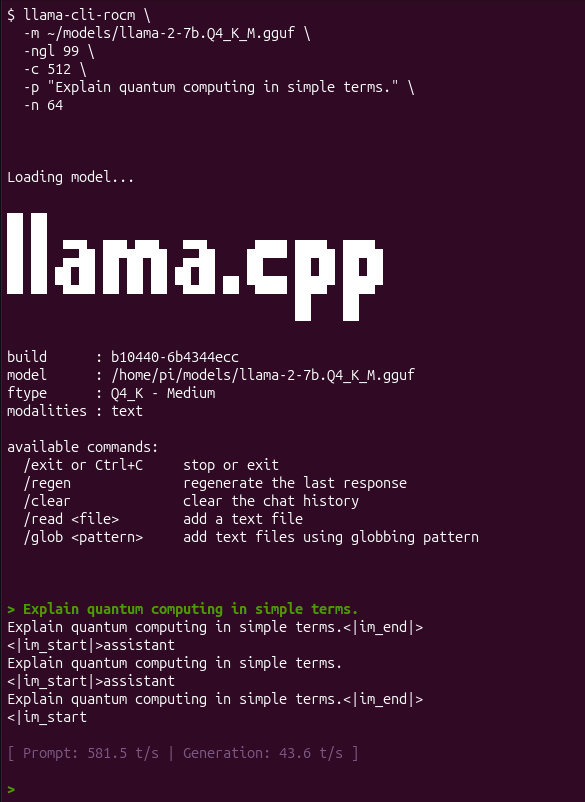
Benchmark Results
Prompt Processing : 581.5 tokens/sec
Token Generation : 43.6 tokens/secThe important result here was not simply the 43.6 tokens/sec number. It demonstrated that the custom ROCm llama.cpp build was successfully executing inference on the Radeon 8060S.
13. Serving Large Models: Muse-Glimmer 30B
A 7B model is only the starting point. The more interesting question for a 128 GB unified-memory machine is whether significantly larger models can remain entirely within the GPU-accessible memory pool. I started with Muse-Glimmer 30B using the Q4_K_XL quantization:
hf download unsloth/Muse-Glimmer-30B-GGUF \
  --local-dir ~/models \
--include "*UD-Q4_K_XL*"Then launched llama.cpp’s OpenAI-compatible server:
llama-server-rocm \
  --model ~/models/Muse-Glimmer-30B-UD-Q4_K_XL.gguf \
  --n-gpu-layers 99 \
  --ctx-size 4096 \
  --parallel 1 \
  --flash-attn on \
  --temp 1.0 \
  --top-p 0.95 \
  --top-k 64 \
  --host 0.0.0.0 \
  --port 8080 \
--alias muse-glimmerThe server exposes an OpenAI-compatible endpoint. For example:
curl http://127.0.0.1:8080/v1/chat/completions \
  -H "Content-Type: application/json" \
  -d '{
    "model": "muse-glimmer",
    "messages": [
      {
        "role": "user",
        "content": "Hello! Tell me about yourself."
      }
    ],
    "max_tokens": 128
}'Response payload:
{
  "choices": [
    {
      "finish_reason": "length",
      "index": 0,
      "message": {
        "role": "assistant",
        "content": "Hello! I am an AI assistant..."
      }
    }
  ],
  "model": "muse-glimmer",
  "timings": {
    "prompt_n": 63,
    "prompt_per_second": 143.48,
    "predicted_n": 128,
    "predicted_per_second": 12.94
  }
}The server reported approximately:
Prompt Processing : 143.5 tokens/sec
Token Generation : 13.0 tokens/secThis was enough to make a 30B model genuinely usable for local interactive experimentation.
13.1 Testing Qwen 3.8 27B
I then moved to Qwen3.8 27B, using an Unsloth GGUF quantization. For the UD-Q4_K_XL variant:
# Qwen 27B (UD-Q4_K_XL)
hf download unsloth/Qwen3.8-27B-GGUF Qwen3.8-27B-UD-Q4_K_XL.gguf --local-dir ~/modelsI used:
llama-cli-rocm \
  --model ~/models/Qwen3.8-27B-UD-Q4_K_XL.gguf \
  --n-gpu-layers 99 \
  --ctx-size 8192 \
  --flash-attn on \
  --temp 0.7 \
  --top-p 0.8 \
  --top-k 20 \
  -p "Explain how quantum computing works, including qubits, superposition, entanglement, and why quantum computers may be useful." \
  -n 256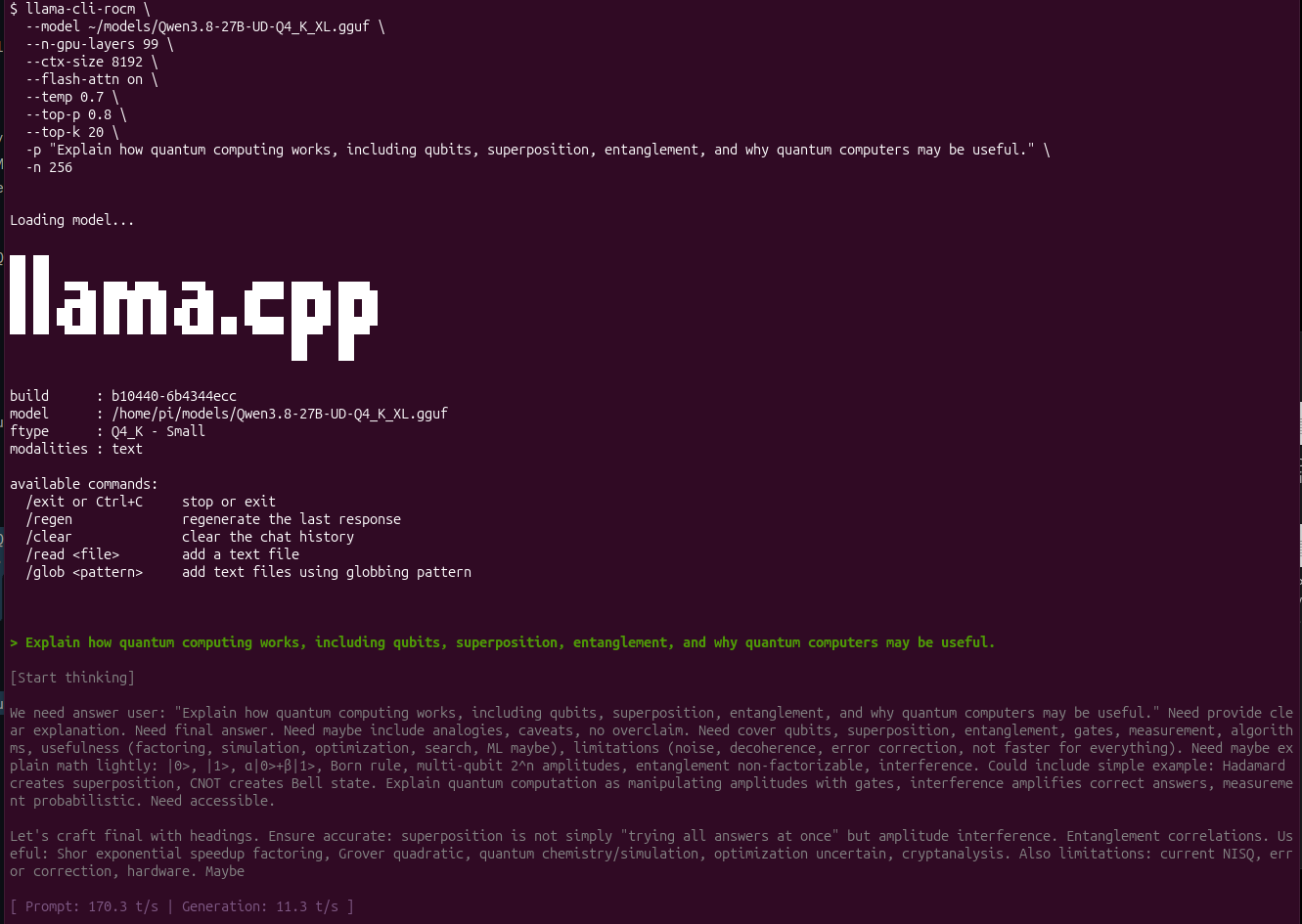
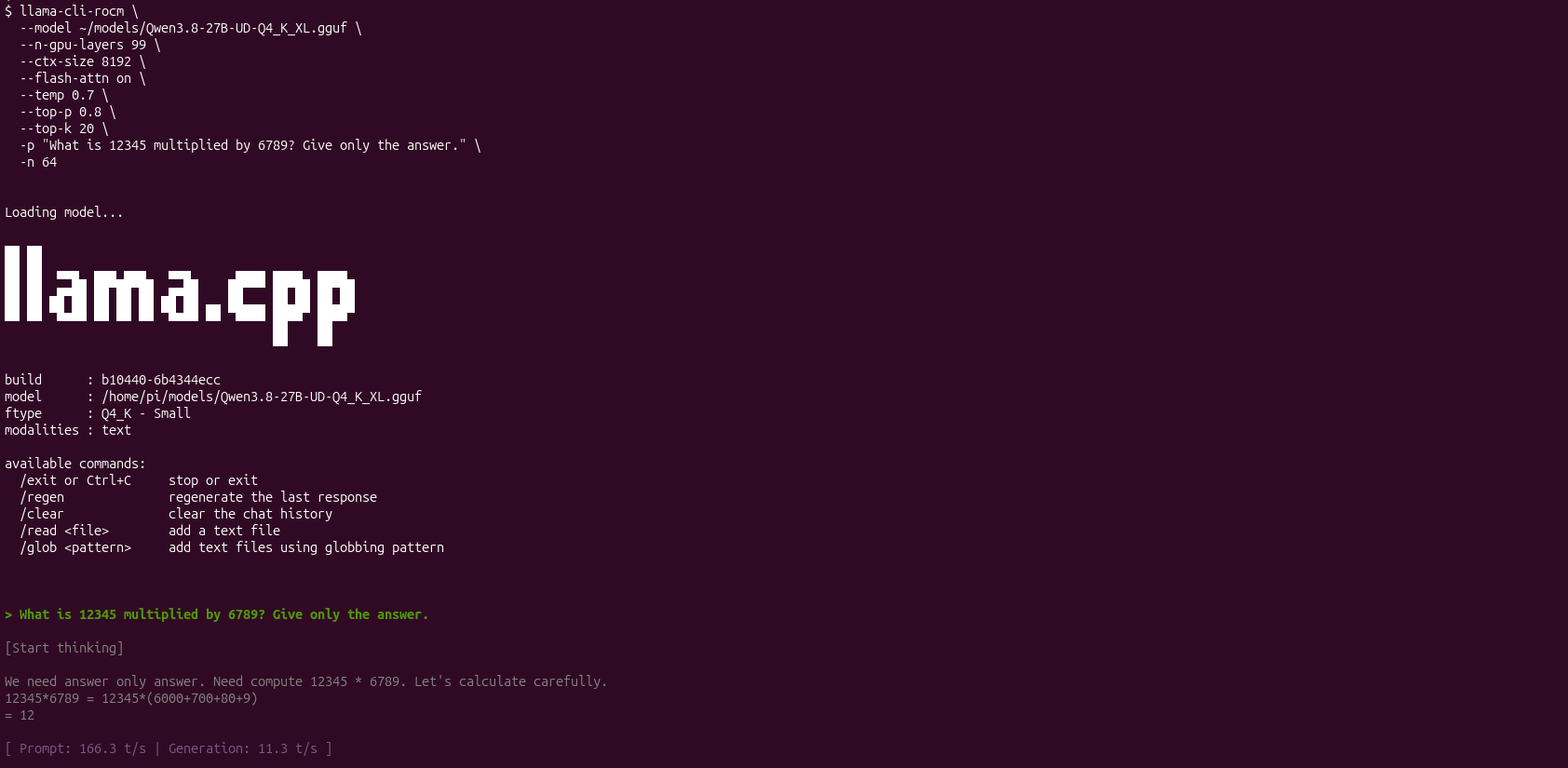
I also used a simple arithmetic test:
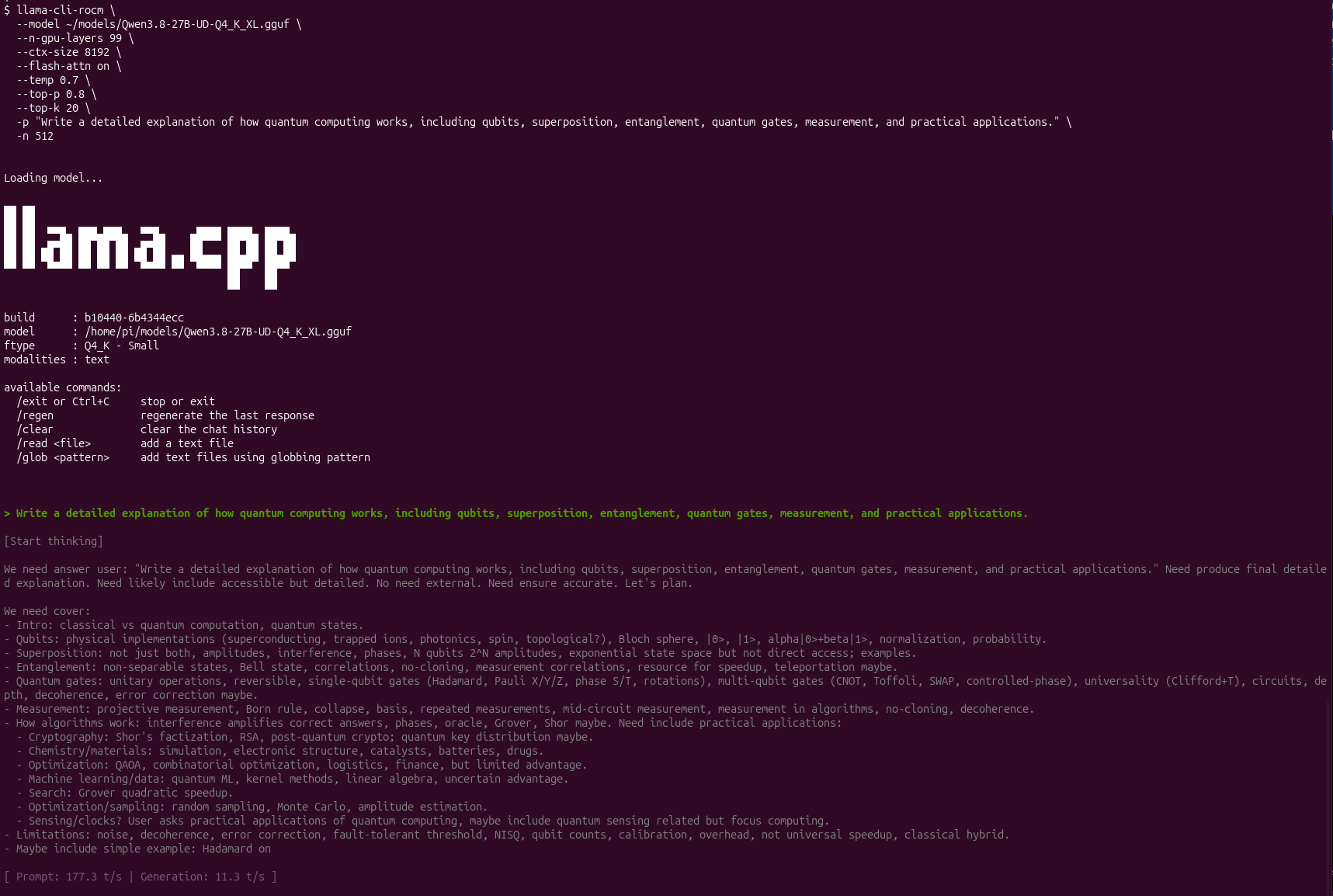
And a longer prompt:
13.2 Comparing Q4_K_XL and Q4_K_M
I also tested the more conventional Q4_K_M quantization:
hf download unsloth/Qwen3.8-27B-GGUF --include "*Q4_K_M*.gguf" --local-dir ~/modelsThen:
llama-cli-rocm \
  --model ~/models/Qwen3.8-27B-Q4_K_M.gguf \
  --n-gpu-layers 99 \
  --ctx-size 8192 \
  --flash-attn on \
  --temp 0.7 \
  --top-p 0.8 \
  --top-k 20 \
  -p "Explain how quantum computing works, including qubits, superposition, entanglement, quantum gates, measurement, and why quantum computers may be useful." \
  -n 256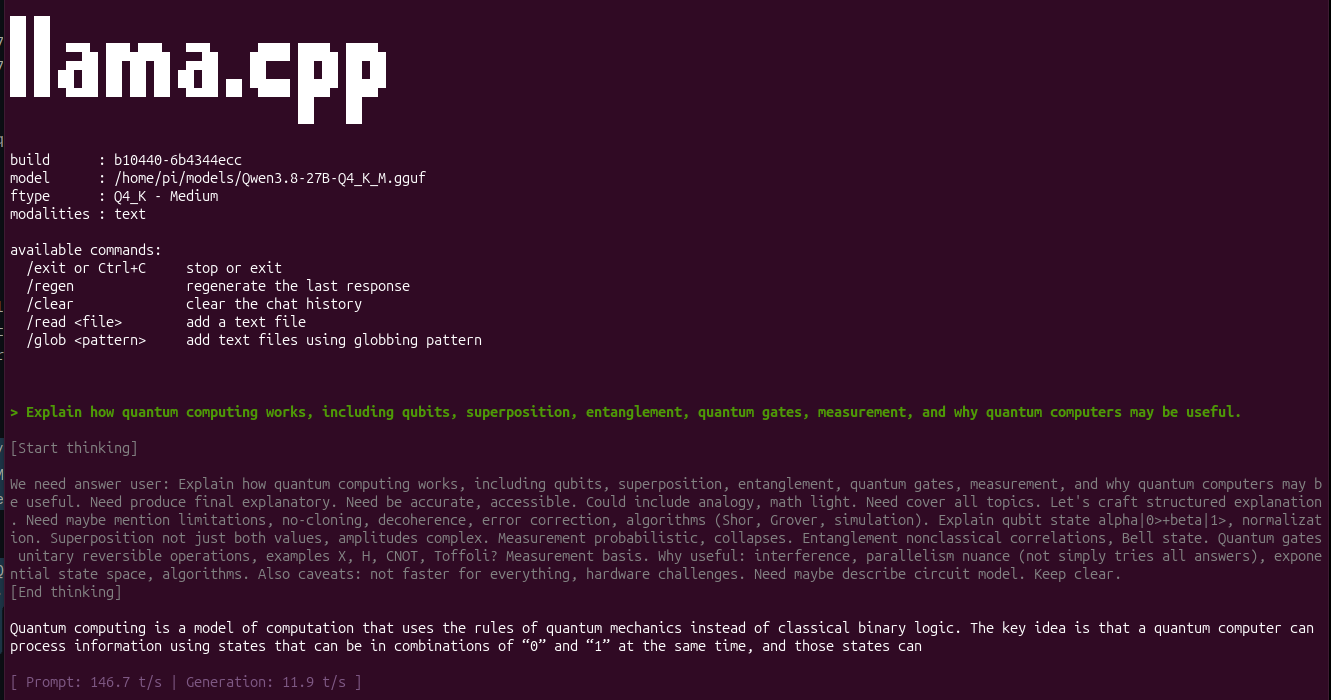
The observed results were:
Qwen3.8 27B Q4_K_XL
Prompt Processing : 176.3 tokens/sec
Token Generation  :  11.3 tokens/sec


Qwen3.8 27B Q4_K_M
Prompt Processing : 146.7 tokens/sec
Token Generation : 11.9 tokens/secThe generation speeds were very close despite the different quantizations. That was an interesting result because it suggests that, for this workload, simply choosing a larger or smaller quantization does not necessarily translate directly into a proportional change in generation speed.
13.3 Muse-Glimmer 30B
I also tested the 30B model directly from the CLI:
llama-cli-rocm \
  --model models/Muse-Glimmer-30B-UD-Q4_K_XL.gguf \
  --temp 1.0 \
  --top-p 0.95 \
  --top-k 64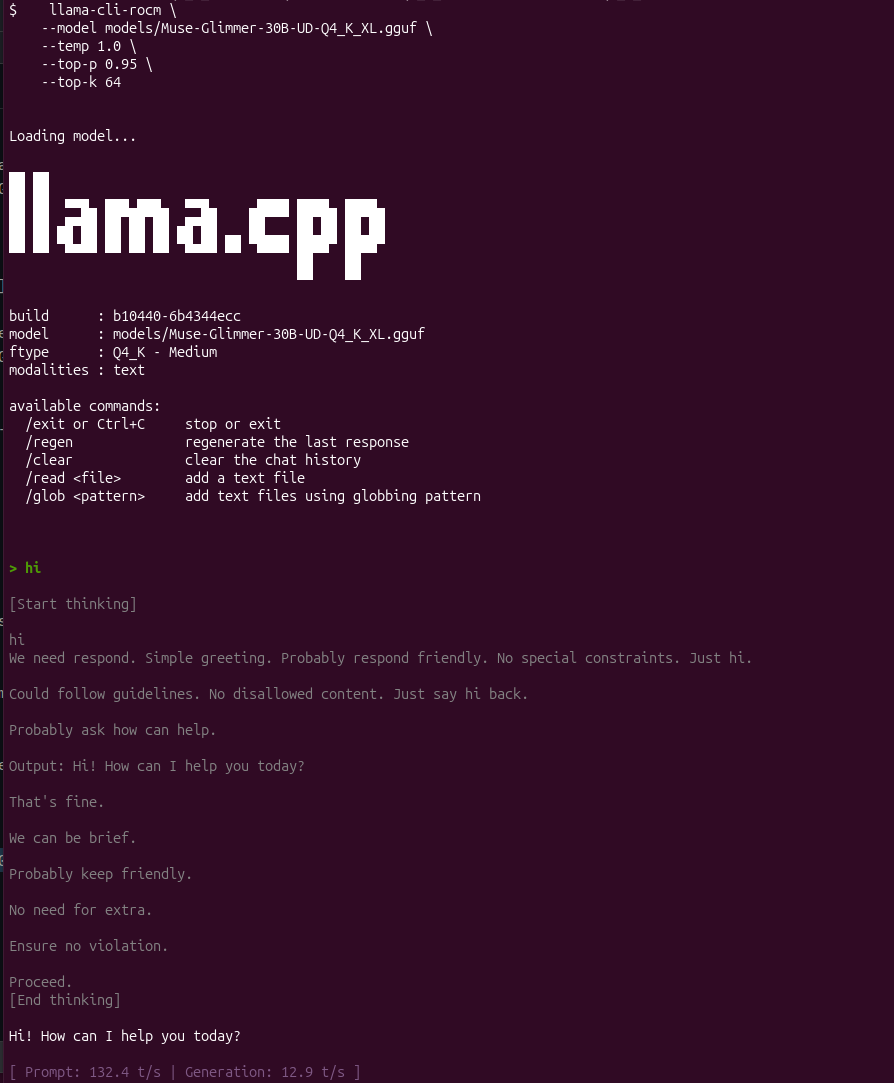
Across the 27B and 30B dense models tested, prompt processing generally landed around 130–177 tokens/sec, while generation was approximately 11–13 tokens/sec. For interactive local use, this is a much more comfortable range than the larger dense models that came later.
14. Pushing Dense Limits: Qwen 2.5 72B
The next test was a full 72B parameter dense model. This was where the unified memory architecture became particularly interesting.
14.1 Qwen 2.5 72B — Q5_K_M
Download the split GGUF files:
hf download Qwen/Qwen2.5-72B-Instruct-GGUF --include "qwen2.5-72b-instruct-q5_k_m*.gguf" --local-dir ~/modelsThe repository provides the model as multiple GGUF split files. I merged them using llama.cpp:
~/llama.cpp/build/bin/llama-gguf-split \
  --merge \
  ~/models/qwen2.5-72b-instruct-q5_k_m-00001-of-00014.gguf \
~/models/qwen2.5-72b-instruct-q5_k_m.ggufThen:
llama-cli-rocm \
  --model ~/models/qwen2.5-72b-instruct-q5_k_m.gguf \
  --n-gpu-layers 99 \
  --ctx-size 4096 \
  --flash-attn on \
  --temp 0.7 \
  --top-p 0.8 \
  --top-k 20 \
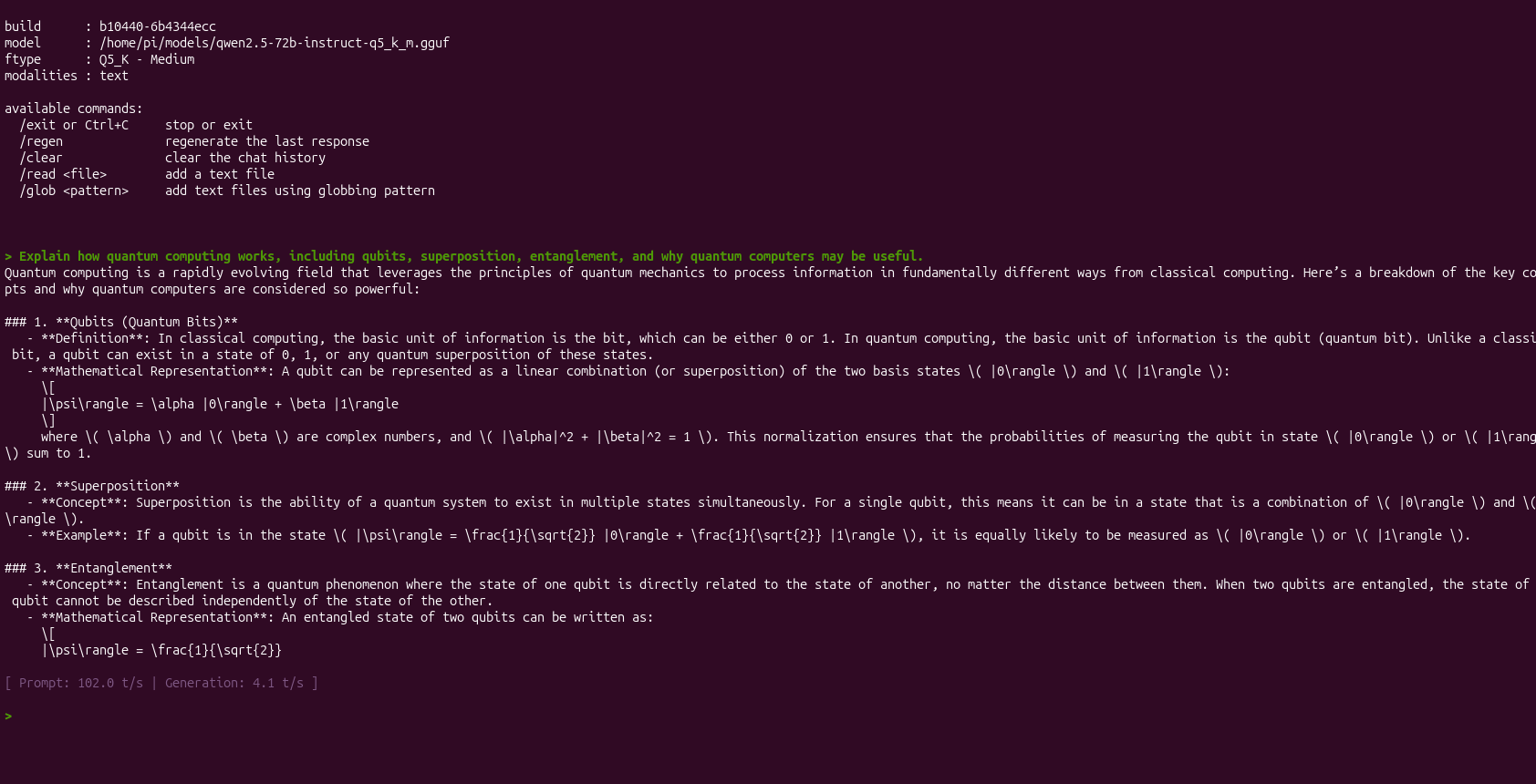
  -p "Explain how quantum computing works, including qubits, superposition, entanglement, and why quantum computers may be useful." \
  -n 128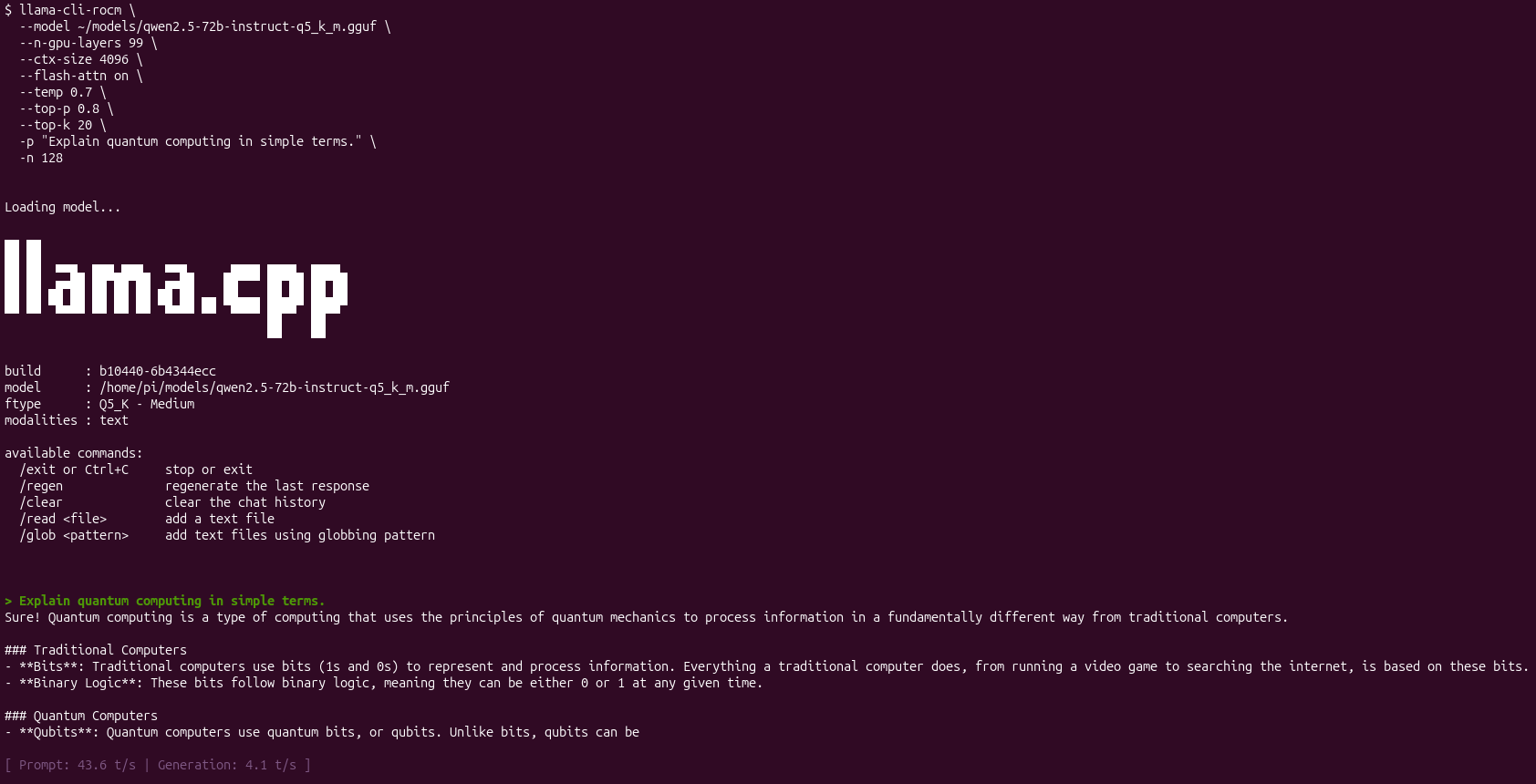
14.2 Qwen 2.5 72B — Q6_K
I also tested the higher-precision Q6_K variant:
hf download Qwen/Qwen2.5-72B-Instruct-GGUF --include "qwen2.5-72b-instruct-q6_k*.gguf" --local-dir ~/modelsThe split files were merged:
~/llama.cpp/build/bin/llama-gguf-split \
  --merge \
  ~/models/qwen2.5-72b-instruct-q6_k-00001-of-00016.gguf \
~/models/qwen2.5-72b-instruct-q6_k.ggufThen:
llama-cli-rocm \
  --model ~/models/qwen2.5-72b-instruct-q6_k.gguf \
  --n-gpu-layers 99 \
  --ctx-size 4096 \
  --flash-attn on \
  --temp 0.7 \
  --top-p 0.8 \
  --top-k 20 \
  -p "Write a detailed technical explanation of how quantum computing works, including qubits, superposition, entanglement, quantum gates, measurement, quantum algorithms, error correction, and practical applications." \
  -n 512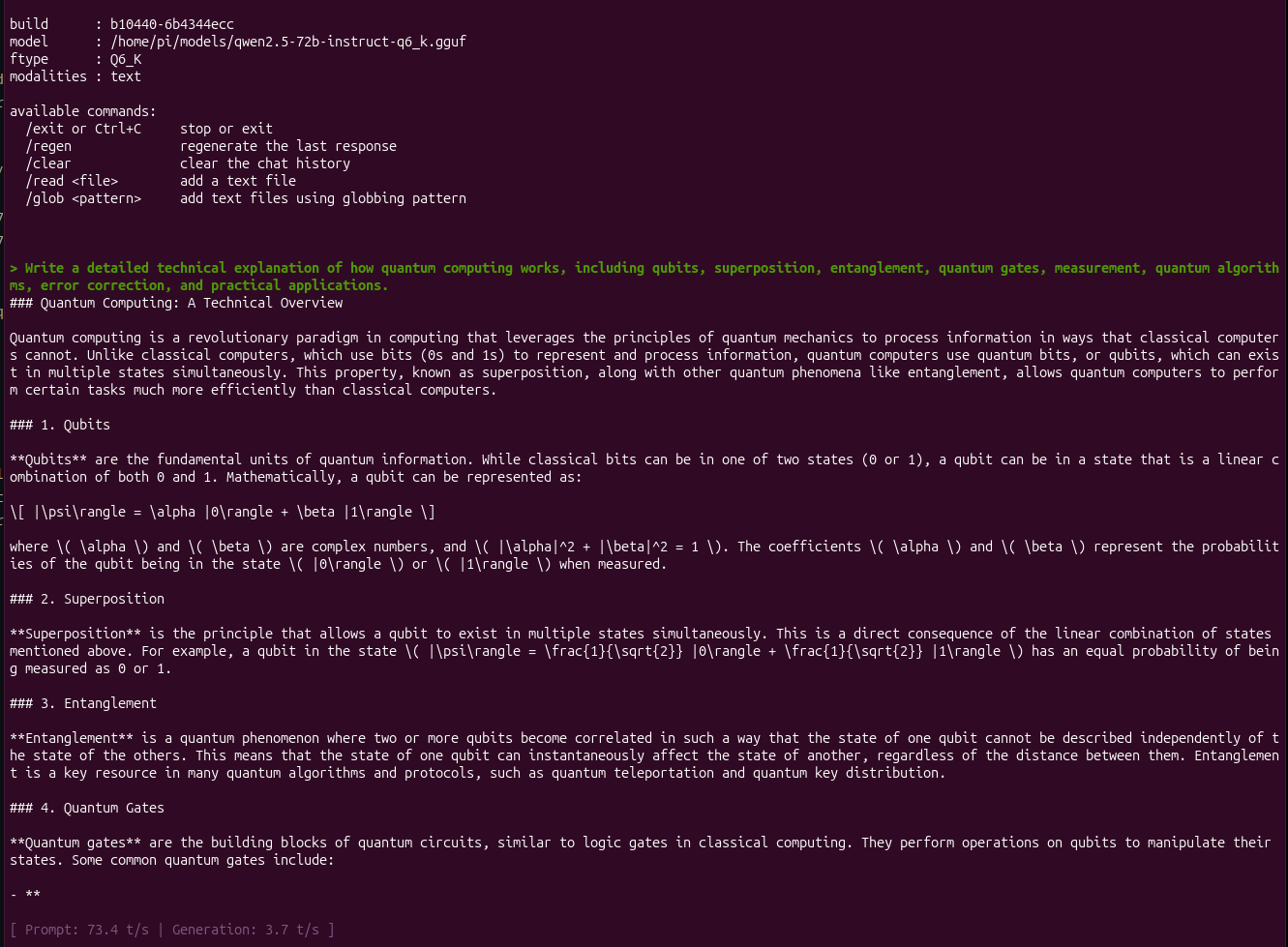
Benchmark Results
Qwen 2.5 72B Q5_K_M
Prompt Processing : 102.0 tokens/sec
Token Generation  :   4.1 tokens/sec

Qwen 2.5 72B Q6_K
Prompt Processing :  73.4 tokens/sec
Token Generation : 3.7 tokens/secBoth models loaded successfully with all 99 layers offloaded to the ROCm device. The important result was not that a 72B dense model suddenly became a fast interactive model. At roughly 4 tokens/sec, it is noticeably slower for conversational use.
Instead, the result demonstrates that the 128 GB unified-memory configuration can accommodate models at this scale without requiring multiple discrete GPUs. For long-form generation, batch processing, experimentation, and workloads where throughput is less important than model size, this is still useful.
15. The 120B Frontier: GPT-OSS 120B MoE
The most interesting result came from GPT-OSS 120B.
Unlike the dense 72B model, GPT-OSS 120B uses a Mixture-of-Experts (MoE) architecture. This means that although the model has around 120B total parameters, only a subset of those parameters are activated for each token. I downloaded the GGUF release:
hf download ggml-org/gpt-oss-120b-GGUF --local-dir ~/modelsThe repository provides several quantization variants. I tested the MXFP4 version:
llama-cli-rocm \
  --model ~/models/gpt-oss-120b-MXFP4.gguf \
  --n-gpu-layers 99 \
  --ctx-size 8192 \
  --flash-attn on \
  --jinja \
  --temp 1.0 \
  --top-p 1.0 \
  --top-k 0 \
  -p "Explain how quantum computing works, including qubits, superposition, entanglement, quantum gates, measurement, and why quantum computers may be useful." \
  -n 512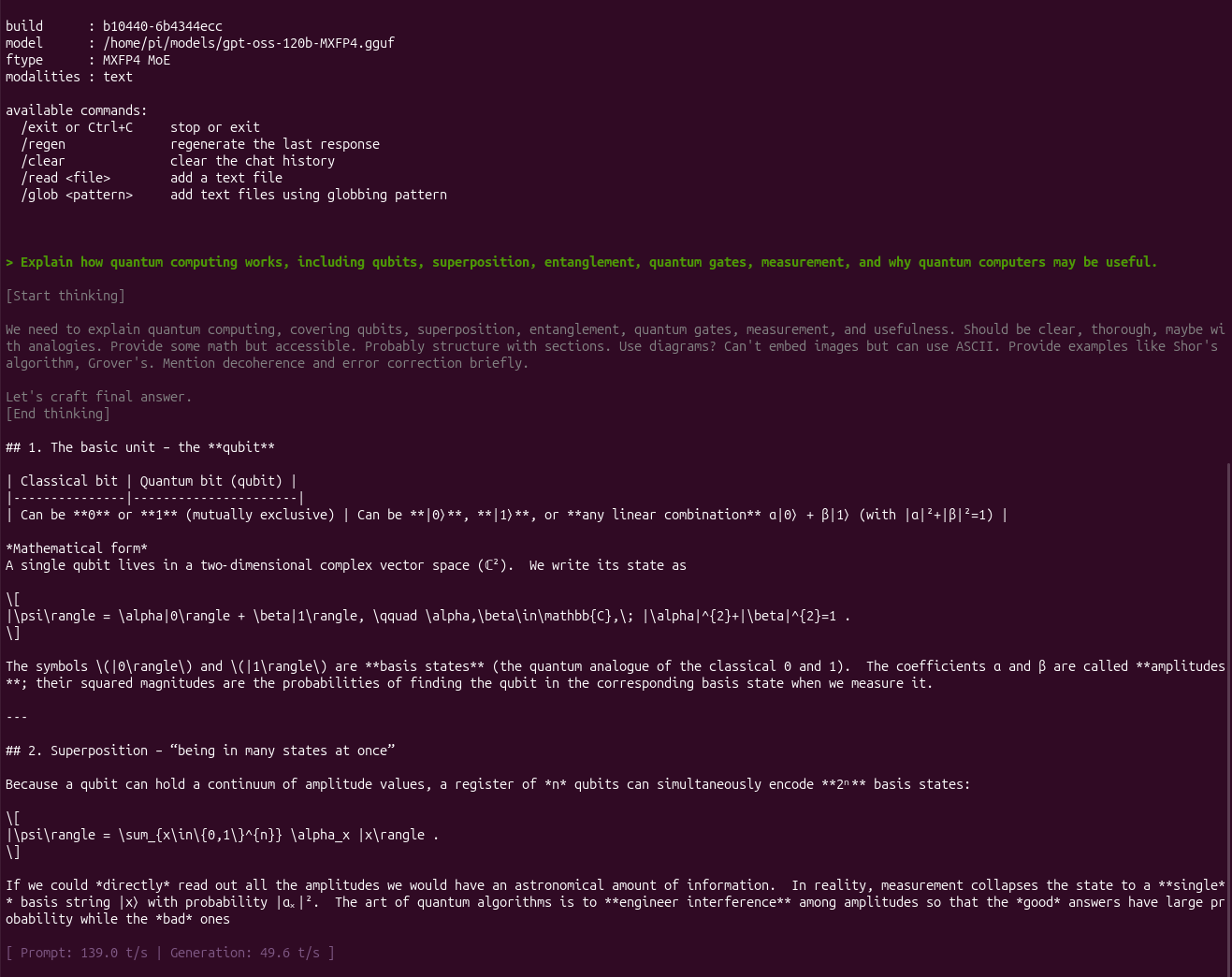
I also ran a longer generation benchmark:
llama-cli-rocm \
  --model ~/models/gpt-oss-120b-MXFP4.gguf \
  --n-gpu-layers 99 \
  --ctx-size 8192 \
  --flash-attn on \
  --jinja \
  --temp 1.0 \
  --top-p 1.0 \
  --top-k 0 \
  -p "Write a detailed 2000-word technical explanation of how quantum computing works, including qubits, superposition, entanglement, quantum gates, measurement, quantum algorithms, error correction, and practical applications." \
-n 200015.2 Benchmark Results
Hardware  : AMD Radeon 8060S (40 CUs, gfx1151)
ROCm      : Native ROCm 7.x
Engine    : llama.cpp b10440 (commit 6b4344ecc)
Model     : GPT-OSS 120B MXFP4 MoE GGUF
Config    : GPU layers 99, Context 8192, Flash Attention ON

Prompt Processing : 165.9 tokens/sec
Token Generation : 49.0 tokens/secThe 49 tokens/sec generation speed was by far the most surprising result of the entire experiment. A 120B model running faster than the dense 72B model sounds counterintuitive at first. The explanation is the architecture.
15.3 Why does 120B MoE run faster than 72B Dense?
The parameter count alone does not determine inference speed. The Qwen 2.5 72B model tested above is a dense model. Its layers involve the full parameter set for each token. GPT-OSS 120B is a Mixture-of-Experts model. Only a subset of its parameters are active for a particular token. That means:
72B Dense
    └── Most of the model participates in every token

120B MoE
    └── 120B total parameters
└── Only selected experts participate per tokenThe result is that a model with a larger total parameter count can have substantially lower per-token compute requirements than a smaller dense model. This is why comparing models purely by parameter count can be misleading when evaluating inference performance.
15.4 What is MXFP4 Quantization?
GPT-OSS is also distributed using MXFP4, a microscaling floating-point format designed for efficient low-bit inference. This differs from the more familiar GGML integer-style quantizations such as:
Q4_K_M
Q5_K_M
Q6_K
Q8_0MXFP4 uses a 4-bit floating-point representation together with block-level scaling. In practical terms, the combination of:
- low-bit weight representation,
- block-level scaling,
- and MoE architecture
makes it possible to fit and execute a very large model within the unified memory available on this system.
The important point for this experiment is not that MXFP4 is universally better than every other quantization format. Rather, GPT-OSS 120B is a particularly good match for this hardware/software combination because its architecture and low-bit representation reduce the amount of computation and memory bandwidth required per generated token.
16. GPU Monitoring with rocm-smi
I also wanted to verify what the GPU was doing during inference. When the system is idle:
rocm-smiThe output looked similar to:
======================================== ROCm System Management Interface ========================================
================================================== Concise Info ==================================================
Device  Node  IDs              Temp    Power     Partitions          SCLK  MCLK  Fan  Perf  PwrCap  VRAM%  GPU%
              (DID,     GUID)  (Edge)  (Socket)  (Mem, Compute, ID)
==================================================================================================================
0       1     0x1586,   35903  39.0°C  11.039W   N/A, N/A, 0         N/A   N/A   0%   auto  N/A     96%    0%
==================================================================================================================During active generation, I monitored utilization with:
watch -n 1 rocm-smiThe GPU utilization rose to close to 100% during active generation, with power consumption reaching approximately 45–54 W in my observations. When generation stopped, utilization and power quickly returned toward the idle state. This behaviour is consistent with the inference workload being executed on the Radeon 8060S rather than simply running as a CPU-only workload.
17. Performance Summary Table
Here is the complete benchmark summary from the models tested on the AMD Radeon 8060S with 128 GB unified memory:
| Model | Parameters | Quantization | Architecture | Prompt Speed | Generation Speed |
|---|---|---|---|---|---|
| Llama 2 7B | 7B | Q4_K_M | Dense | 581.5 t/s |
43.6 t/s |
| Qwen 3.8 27B | 27B | Q4_K_XL | Dense | 177.3 t/s |
11.3 t/s |
| Qwen 3.8 27B | 27B | Q4_K_M | Dense | 146.7 t/s |
11.9 t/s |
| Muse-Glimmer 30B | 30B | Q4_K_XL | Dense | 143.5 t/s |
13.0 t/s |
| Qwen 2.5 72B | 72B | Q5_K_M | Dense | 102.0 t/s |
4.1 t/s |
| Qwen 2.5 72B | 72B | Q6_K | Dense | 73.4 t/s |
3.7 t/s |
| GPT-OSS 120B | 120B | MXFP4 | MoE | 165.9 t/s |
49.0 t/s |
These are measurements from my own machine and configuration. They should not be interpreted as universal performance numbers for the Radeon 8060S.
Inference speed depends heavily on the llama.cpp build, ROCm version, quantization, context size, prompt length, batch size, sampling configuration, model architecture, and whether features such as speculative decoding are enabled.
For example, AMD’s own Qwen3.8 27B testing uses a different software and benchmark configuration, so its published numbers should not be directly compared against these llama.cpp measurements without matching the test conditions.
18. What I Learned
This experiment changed my view of what is practical on a small unified-memory machine.
18.1 Unified Memory Changes the Model-Size Equation
The Radeon 8060S is not a discrete GPU with a conventional fixed VRAM ceiling. With the Linux configuration used here, the GPU can access a much larger portion of the 128 GB system memory through the unified-memory/GTT path. That makes models such as 70B-class and even 120B-class models technically practical on a small desktop system.
The trade-off is that memory capacity and compute throughput are different constraints. Being able to fit a model does not automatically make it fast.
18.2 Dense Models Become Memory-Bandwidth Bound
The 72B Qwen results illustrate this clearly.
Moving from:
27B dense → ~12 t/s
72B dense → ~4 t/sshows how quickly generation throughput can fall as the amount of model data that must be processed per token increases. For these larger dense models, the 128 GB unified memory is primarily solving the capacity problem. It does not magically turn the Radeon 8060S into a high-end multi-GPU inference server.
18.3 MoE Changes the Equation
The GPT-OSS 120B result was the real surprise. Despite having substantially more total parameters than the 72B dense model, the MoE architecture only activates a subset of the model for each token. Combined with MXFP4 quantization, this produced:
GPT-OSS 120B
49.0 tokens/secon the same Radeon 8060S.
This is a good demonstration of why model architecture matters as much as parameter count when evaluating local inference.
18.4 The Software Stack Matters
The hardware was only one part of the puzzle. The successful configuration required:
Ubuntu
   ↓
amdgpu
   ↓
Linux GTT / TTM
   ↓
ROCm / HIP
   ↓
gfx1151-targeted llama.cpp
   ↓
GGUFA generic CPU-only llama.cpp package or an incorrectly targeted GPU build can completely change the result. For AMD hardware, the inference backend and architecture target deserve as much attention as the model itself.
18.5 A Small APU Can Be a Surprisingly Capable Local AI Server
The most interesting conclusion is not that the Radeon 8060S can replace a high-end discrete GPU. It cannot. The interesting part is that a relatively compact Ryzen AI Max+ 395 system with 128 GB of unified memory can run models ranging from 7B all the way to a 120B MoE model without requiring a rack full of GPUs. The resulting performance varies dramatically by architecture:
7B Dense
    → very fast

27–30B Dense
    → comfortable interactive inference

72B Dense
    → large-model experimentation, but slow generation

120B MoE
→ surprisingly high generation throughputFor a homelab, developer workstation, or private local AI server, that is a very interesting capability.
Final Thoughts
The original motivation for this experiment was simple: I wanted to understand whether the 128 GB unified-memory architecture of Strix Halo could make genuinely large local models practical. The answer is yes — but with an important qualification.
Memory capacity determines what you can load. Model architecture, quantization, memory bandwidth, and the inference engine determine how fast you can run it.
The Radeon 8060S is not competing with high-end discrete accelerators on raw compute throughput. Instead, its combination of:
- 128 GB unified system memory
- 40 GPU compute units
- high-bandwidth LPDDR5X
- ROCm support
- gfx1151-targeted llama.cpp
- and low-bit GGUF models
creates a surprisingly capable platform for experimenting with large local models.
The most compelling result from this experiment was not the 7B benchmark or even the 72B model. It was seeing a 120B MoE model generate around 49 tokens/sec on a small desktop APU. That is the point where unified-memory local AI starts to become genuinely interesting. Local AI on unified-memory APUs is becoming a very practical homelab workload.