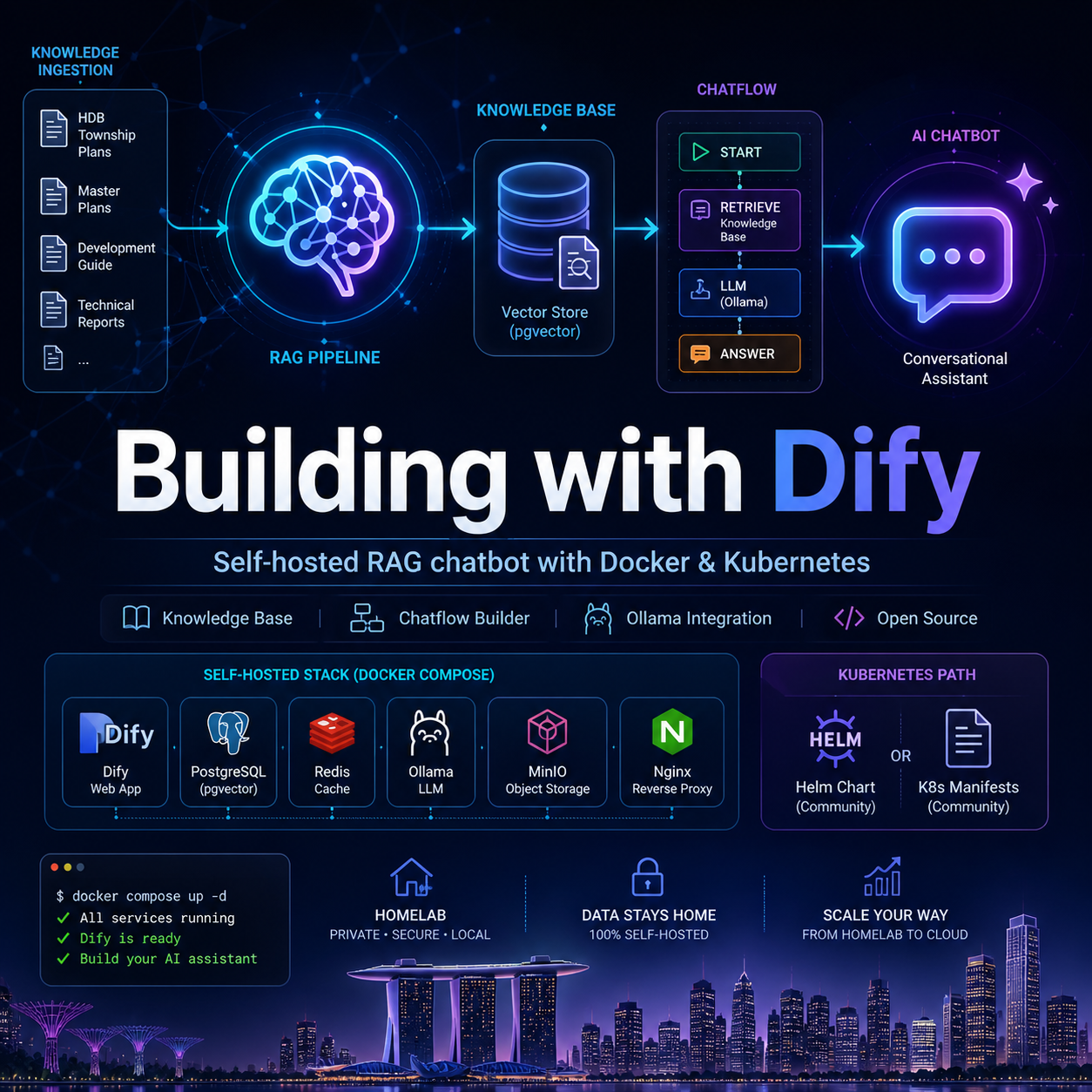
In my previous homelab post , I deployed n8n as a workflow automation engine with AI Ops capabilities on my Talos cluster.
This time, I take a different approach and explore Dify — an open-source platform designed specifically for building LLM-powered applications, complete with built-in RAG pipelines, a Knowledge Base engine, and a visual Chatflow builder.
The objective is straightforward: build a conversational assistant grounded in real HDB township planning data, run it locally with Docker Compose, and then look at practical paths to bring the stack onto Kubernetes using community-supported Helm charts and manifests.
Dify vs n8n — A Quick Comparison
Before diving into the setup, it is worth understanding where Dify fits relative to n8n, as both platforms are popular in the self-hosted AI space.
| Dify | n8n | |
|---|---|---|
| Primary focus | LLM app development (RAG, Agents, Chatflows) | General workflow automation |
| Built-in RAG | ✅ Native Knowledge Base with chunking, embedding, retrieval | ❌ Requires external vector store setup |
| Visual builder | Chatflow / Agent canvas | Node-based workflow canvas |
| Trigger model | HTTP / chatbot widget / API | Schedule / webhook / event |
| LLM provider support | OpenAI, Anthropic, Ollama, Azure, and more | Via HTTP node or community nodes |
| Deployment | Docker Compose (batteries included) | Docker / Kubernetes |
| Best for | Knowledge-intensive AI assistants, RAG applications | Process automation, cross-system workflows |
| Multi-agent | ✅ Native agent node with tools | ✅ With AI Agent node |
| Human-in-the-loop | ✅ Via workflow approval step | ✅ Via Telegram wait node |
When to choose Dify: When you want a purpose-built RAG and chat platform with a clean UI for non-engineers to interact with your data.
When to choose n8n: When you need to orchestrate multiple services, schedule jobs, handle webhooks, or build operational workflows across systems.
In practice, the two are complementary—n8n excels at orchestration, while Dify excels at making knowledge accessible through conversation.
Setup
Prerequisites
- Docker Desktop (or Docker Engine + Compose plugin)
- At least 8 GB RAM recommended for running Dify with a local model
1. Clone the Dify Repository
Start by cloning the official Dify repository:
git clone https://github.com/langgenius/dify.git
cd dify2. Start with Docker Compose
Navigate to the docker folder, which contains the preconfigured docker-compose.yaml and .env.example file:
cd docker
cp .env.example .env
docker compose upThe first docker compose up will pull several images and may take a few minutes depending on your connection speed. The main services started are:
- api: Dify API server
- worker: Celery background worker
- web: Next.js frontend
- db: PostgreSQL
- redis: session store and task queue
- weaviate: vector store for the Knowledge Base
- sandbox: isolated code execution environment
- ssrf_proxy: outbound request proxy for security
- nginx: reverse proxy (exposes port 80)
Verify that all containers are running:
docker compose psYou should see output similar to:
NAME                            IMAGE                                         STATUS
dify-api-1                      langgenius/dify-api:1.14.0                    Up
dify-db-1                       postgres:15-alpine                            Up
dify-nginx-1                    nginx:latest                                  Up
dify-plugin_daemon-1            langgenius/dify-plugin-daemon:0.6.0-local     Up
dify-redis-1                    redis:6-alpine                                Up
dify-sandbox-1                  langgenius/dify-sandbox:0.2.15                Up
dify-ssrf_proxy-1               ubuntu/squid:latest                           Up
dify-weaviate-1                 semitechnologies/weaviate:1.27.0              Up
dify-web-1                      langgenius/dify-web:1.14.0                    Up
dify-worker-1                   langgenius/dify-api:1.14.0                    Up
dify-worker_beat-1 langgenius/dify-api:1.14.0 UpOpen your browser and navigate to http://localhost. You will be prompted to create an admin account on first launch.
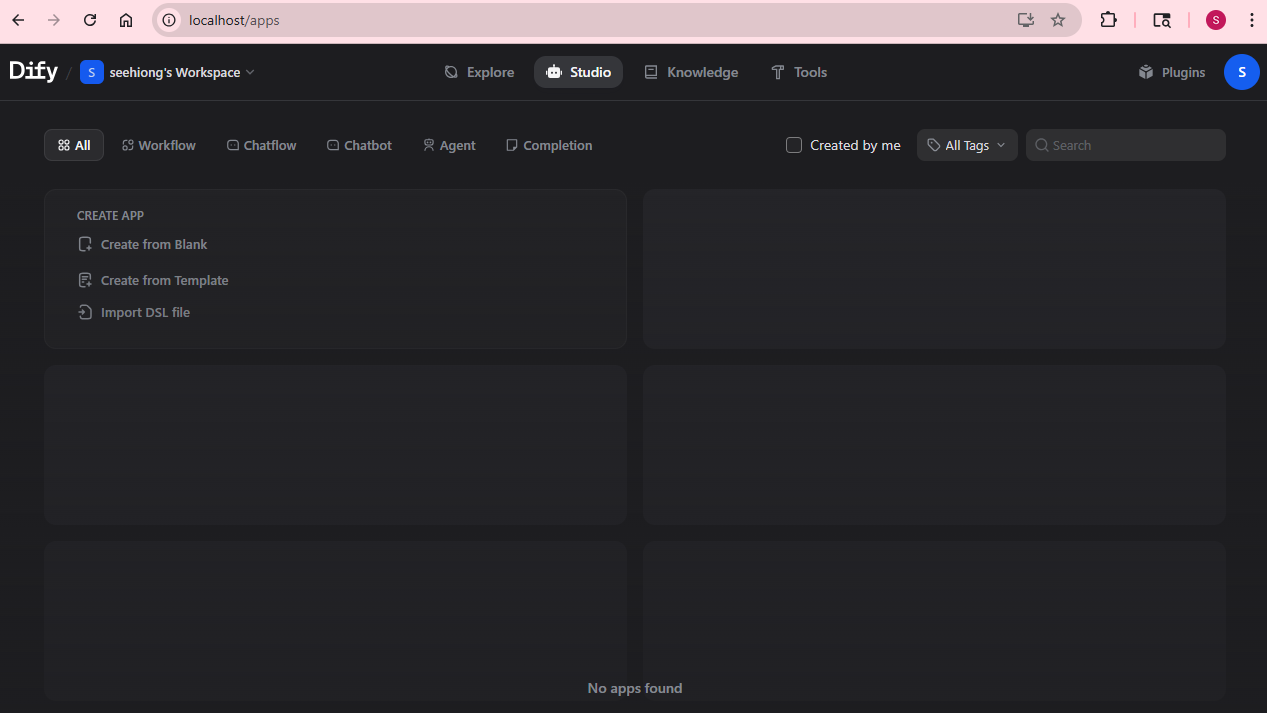
3. Configure an LLM Provider
Before using the Knowledge Base or Chatflow, configure at least one LLM provider.
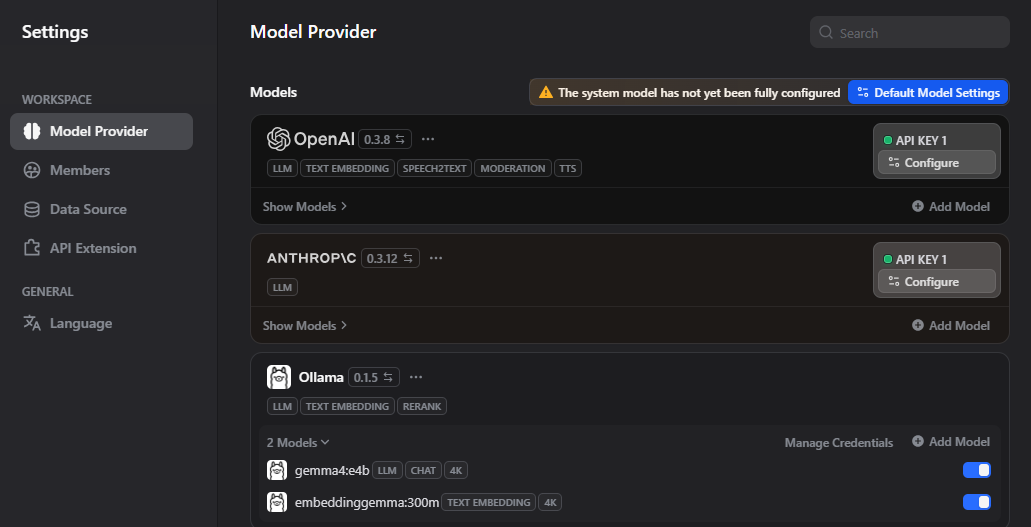
Go to Settings → Model Providers and choose one of the following:
Option A — Ollama (local, no API key needed)
If running Ollama on another machine in your home network:
- Select Ollama
- Set the API endpoint (e.g. http://192.168.68.120:11434)
- Add your available models (e.g.
gemma4:e4b,embeddinggemma:300m)
Option B — OpenAI-compatible API
Any compatible endpoint (LiteLLM, LocalAI, etc.) works. Configure the base URL and API key accordingly.
Homelab Tip: Connecting to Local Services
If you encounter connection or SSL issues:
- Use
http://host.docker.internal
:[PORT] instead of local
.landomains - Add
host.docker.internaltoNO_PROXYin.env - Prefer
http://in trusted local networks to avoid certificate issues
embeddinggemma:300m via Ollama is a reliable local option. Set it under System Model Settings.
Building the HDB Township Planning Knowledge Base
1. Prepare Your Documents
Download township planning documents from the official HDB Town Design Guides .
These documents act as a “blueprint” for each town, covering:
- Town Vision: overarching identity (e.g., “Forest Town”, “Waterfront Town”)
- Planning History: evolution from past land use
- Design Principles: building forms, colors, layouts
- Landscape & Public Realm: integration of green and social spaces
- Distinctive Landmarks: key orientation features
2. Create the Knowledge Base in Dify
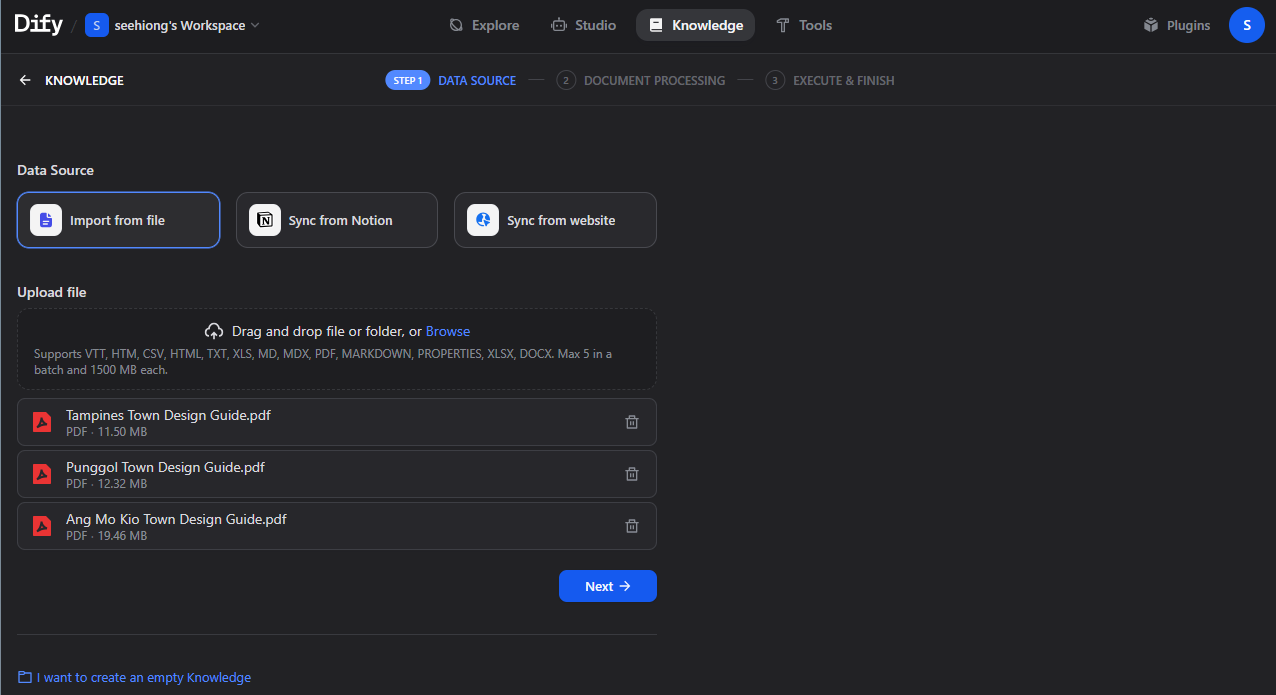
- Navigate to Knowledge
- Click Create Knowledge
- Name it:
HDB Township Planning - Upload your PDF documents
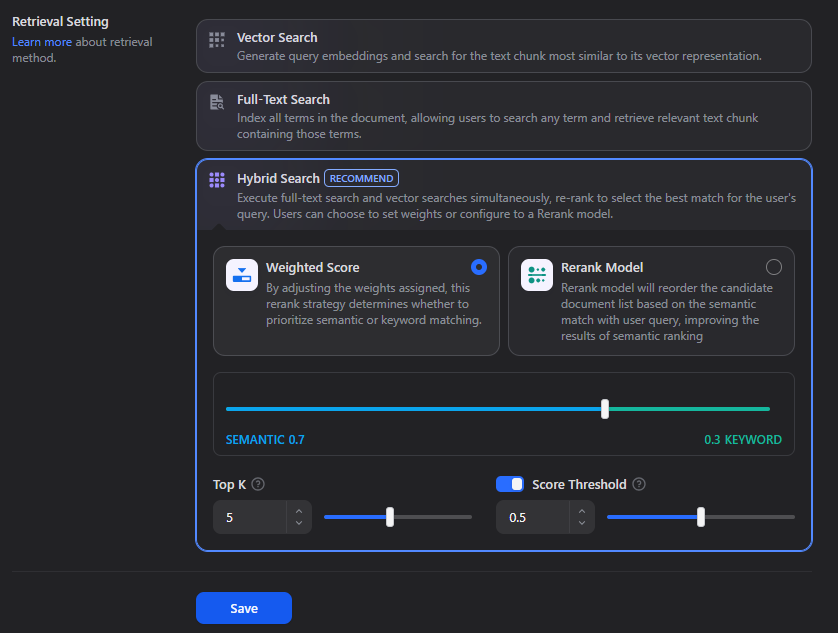
3. Configure Chunking and Indexing
Recommended settings:
| Setting | Recommended Value | Notes |
|---|---|---|
| Indexing method | High Quality | Better retrieval accuracy |
| Chunking mode | Parent-child | Improves context recall |
| Parent chunk | Paragraph | Max ~1024 chars |
| Child chunk | \n delimiter |
Max ~500 chars |
| Retrieval | Hybrid Search | Vector + keyword |
Click Save & Process.
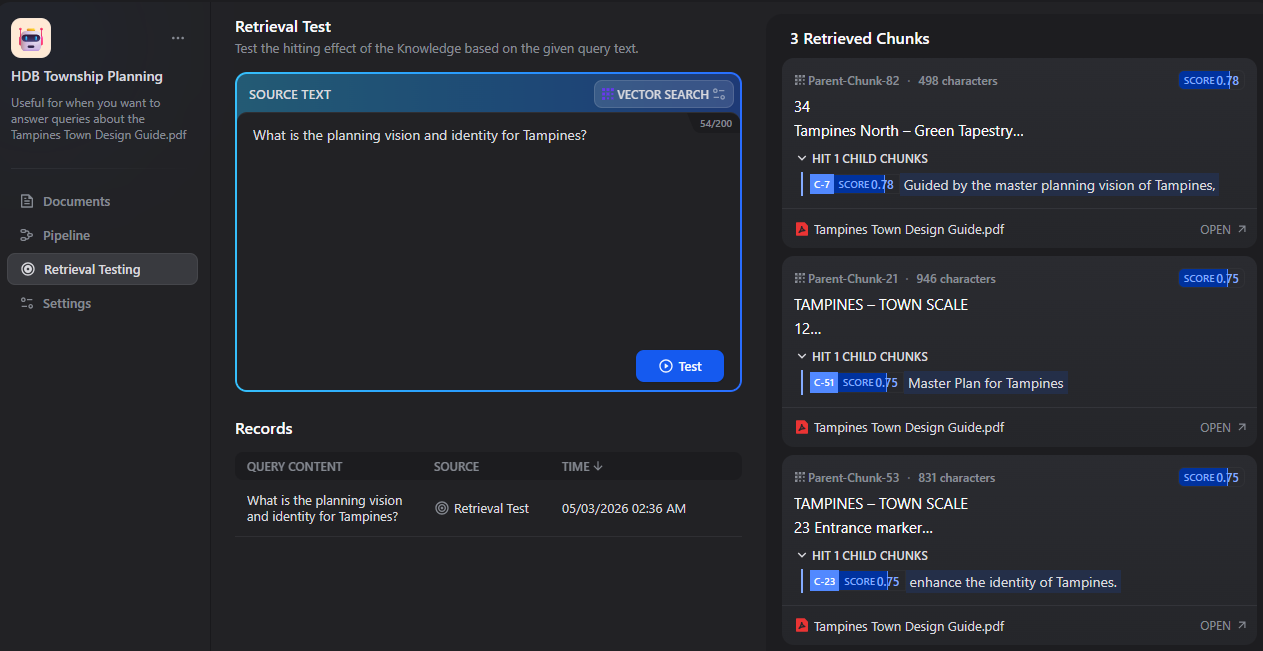
Test retrieval using queries such as:
"What is the planning vision and identity for Tampines?""How does Punggol reflect its waterfront identity?""What are Ang Mo Kio’s design principles?"
Creating the HDB Chatflow
1. Create a New Chatflow
- Go to Studio → Create App
- Select Chatflow
- Name it:
HDB Township Advisor - Click Create
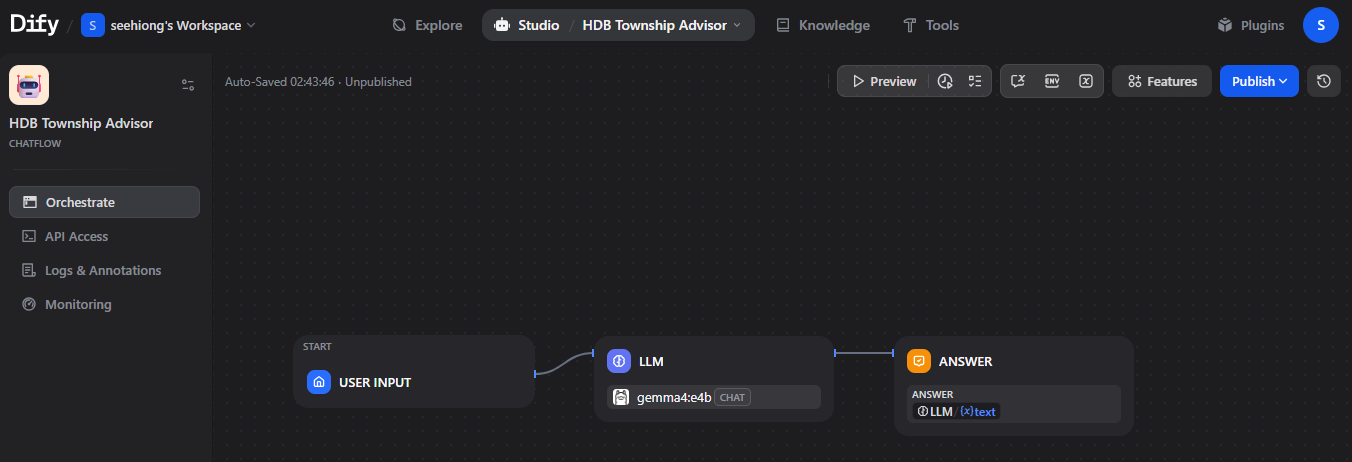
2. Build the Pipeline
The Chatflow canvas opens with a Start node (captures user input) and a Answer node (returns the final reply). Build the following pipeline between them:
Start
  └── Knowledge Retrieval (HDB Township Planning)
        └── LLM
└── Answer2.1 Knowledge Retrieval Node
- Drag a Knowledge Retrieval node onto the canvas
- Under Knowledge, select
HDB Township Planning - Set Top K to
5 - Set Score threshold to
0.5
2.2 Add the LLM Node
- Drag an LLM node onto the canvas
- Select your configured LLM (e.g.
qwen3.6:35bvia Ollama, or an OpenAI model) - In the System Prompt, paste the following:
You are a helpful Singapore HDB township planning assistant.

Use ONLY the context provided below to answer the user's question.
If the answer is not in the context, say "I don't have that information in my current knowledge base."

Be concise, factual, and cite which town or document area the information comes from.

Context:
{{#context#}}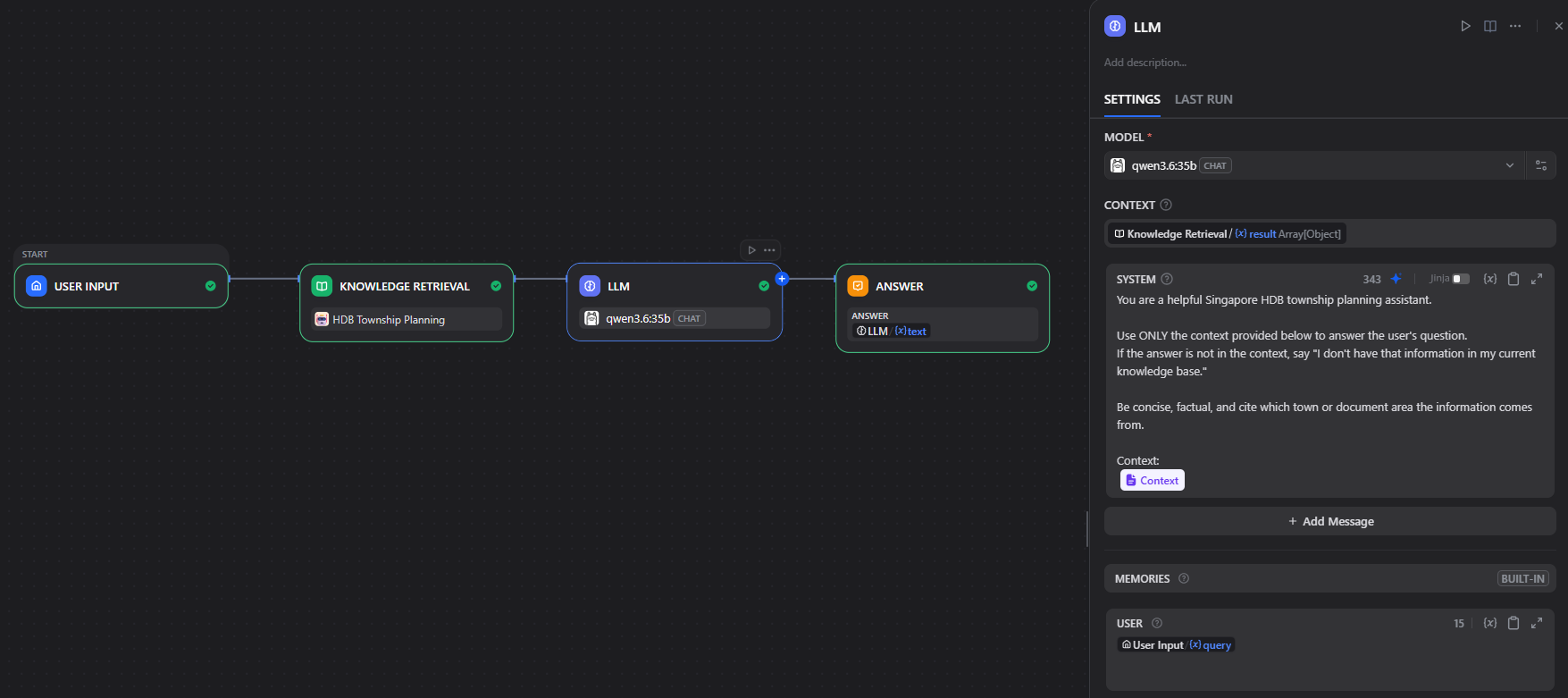
3. Test the Chatflow
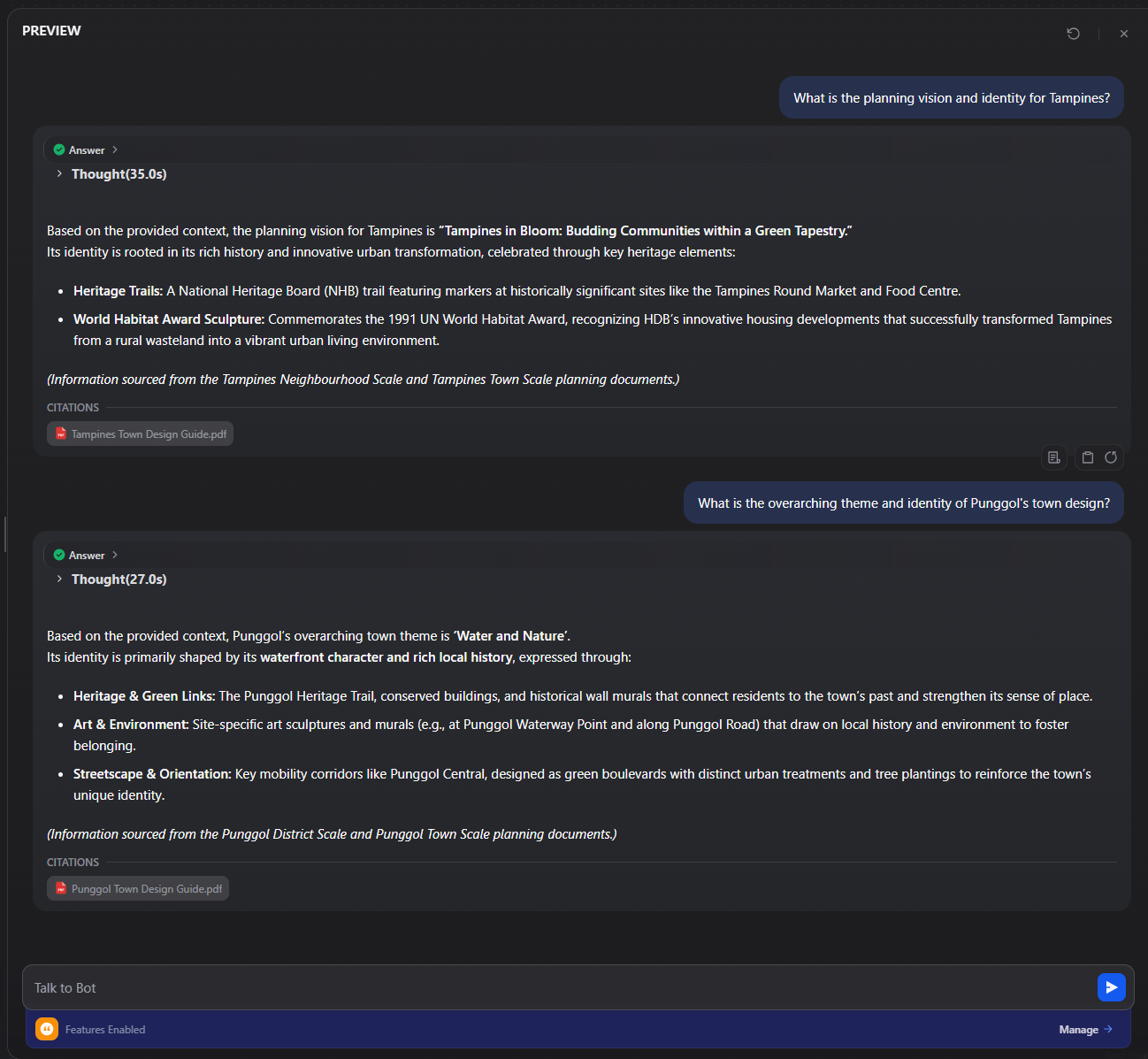
Click Preview in the top-right corner to open the inline chat panel. Use queries like:
“What is the planning vision and identity for Tampines?”
“What is the overarching theme and identity of Punggol’s town design?”
4. Publish and Embed
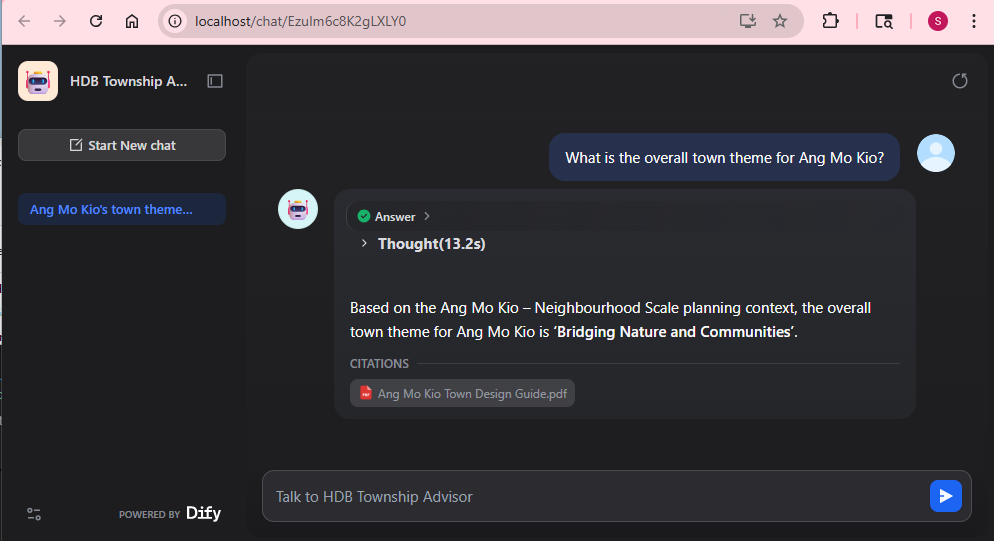
Once ready, click Publish. Available options:
- Web App URL — a standalone chat page hosted by Dify (e.g.
http://localhost/chat/<app-id>) - Embed script — a chat widget you can drop into any webpage
- API — OpenAI-compatible REST endpoint for programmatic access
Migrating to Kubernetes
While Docker Compose is excellent for local prototyping, bringing Dify into a homelab Kubernetes cluster requires a more declarative setup.
To keep the deployment lightweight and state-free, we can compile the community Helm templates into a single, raw dify.yaml manifest. This eliminates the need to manage Helm client repositories or chart dependencies at deployment time.
The Homelab Architecture
Here is how our self-hosted Kubernetes setup is structured:
- State-Free Manifests: All Helm chart templates are compiled into
dify.yaml. - Persistent Storage: All persistent volume claims (for PostgreSQL, Redis, Weaviate, and the Plugin Daemon) are overridden to use the
local-pathstorage class (ReadWriteOnce). - Dedicated Vector Database: A self-contained Weaviate service is deployed within the cluster to manage the RAG knowledge embeddings.
- Unified Routing via Caddy: Instead of exposing individual NodePorts, we route traffic through the homelab’s central Caddy gateway using hostnames (
dify.lan,dify-app.lan,dify-api.lan,dify-files.lan). HTTPS termination is handled locally usingmkcertcertificate secrets.
1. The Deployment Configurations
To adapt the standard Helm values for a custom local cluster, we configure values.yaml:
# Global configuration for Dify Community Edition
global:
  edition: SELF_HOSTED
  useTLS: true
  consoleWebDomain: dify.lan
  consoleApiDomain: dify.lan
  appWebDomain: dify-app.lan
  appApiDomain: dify-app.lan
  filesDomain: dify-files.lan
  serviceApiDomain: dify-api.lan

# Storage class overrides
api:
  persistence:
    enabled: true
    persistentVolumeClaim:
      storageClass: local-path
      size: 10Gi

# Dedicated Weaviate configuration
weaviate:
  enabled: true
  persistence:
    enabled: true
    storageClass: local-path
size: 10Gi2. Streamlined Lifecycle Scripts
For painless operations, we manage the rollout using simple automation scripts:
Installation (install.bat):
@echo off
kubectl create namespace dify --dry-run=client -o yaml | kubectl apply -f -
kubectl apply -f dify.yaml
echo Waiting for deployment rollout...
kubectl rollout status deployment/dify-release-api -n dify
kubectl rollout status deployment/dify-release-web -n difyUninstallation (uninstall.bat):
@echo off
kubectl delete -f dify.yaml
kubectl delete namespace dify3. Local Ingress Resolution
To access Dify securely, add the following hostnames pointing to your Caddy LoadBalancer IP (e.g., 192.168.68.220) in your Windows hosts file:
192.168.68.220 dify.lan
192.168.68.220 dify-app.lan
192.168.68.220 dify-api.lan
192.168.68.220 dify-files.lanOnce running, navigating to https://dify.lan loads the console directly, fully terminated with local TLS.
Conclusion
Dify fills an interesting gap in the self-hosted AI stack. Where tools like n8n excel at orchestration and automation, Dify focuses on making knowledge accessible through structured, conversational interfaces. The built-in RAG pipeline, Knowledge Base management, and Chatflow builder significantly reduce the amount of glue code typically required to build these systems from scratch.
In this walkthrough, we went from a clean Docker Compose deployment to a working, domain-specific chatbot grounded in HDB township planning documents. More importantly, the same setup can be extended beyond this use case—whether for internal documentation search, homelab observability insights, or personal knowledge assistants.
From a homelab perspective, the ability to run everything locally (including models via Ollama) keeps the stack cost-effective and private, while still leaving the door open to scale via Kubernetes using community-supported deployment options.
In future iterations, I plan to explore integrating Dify with n8n—using n8n as the orchestration layer to trigger workflows, enrich data sources, and feed structured knowledge back into Dify’s Knowledge Base. That combination could bridge the gap between automation and conversational AI in a more cohesive way.